
Our first Built for Shopify review was stressful. We had little idea of what to expect, just a long list of guidelines we hoped we were meeting and a lot on the line.
Since then we’ve been through more than 10 BFS reviews and it feels a lot calmer. We have a better idea of what reviewers are focused on and which mistakes to avoid. Our last review took less than an hour to resolve and was approved later that same day. Here’s what I wish I had known before my first review.
Onboarding
Apps should have a concise onboarding experience that helps merchants establish the app’s core functionality.
Built for Shopify Requirements (4.2.2)
The onboarding flow was the most common issue we faced in our earlier BFS reviews. What consistently works is to include a card like this on the homepage with three steps that users need to do to set up the app:
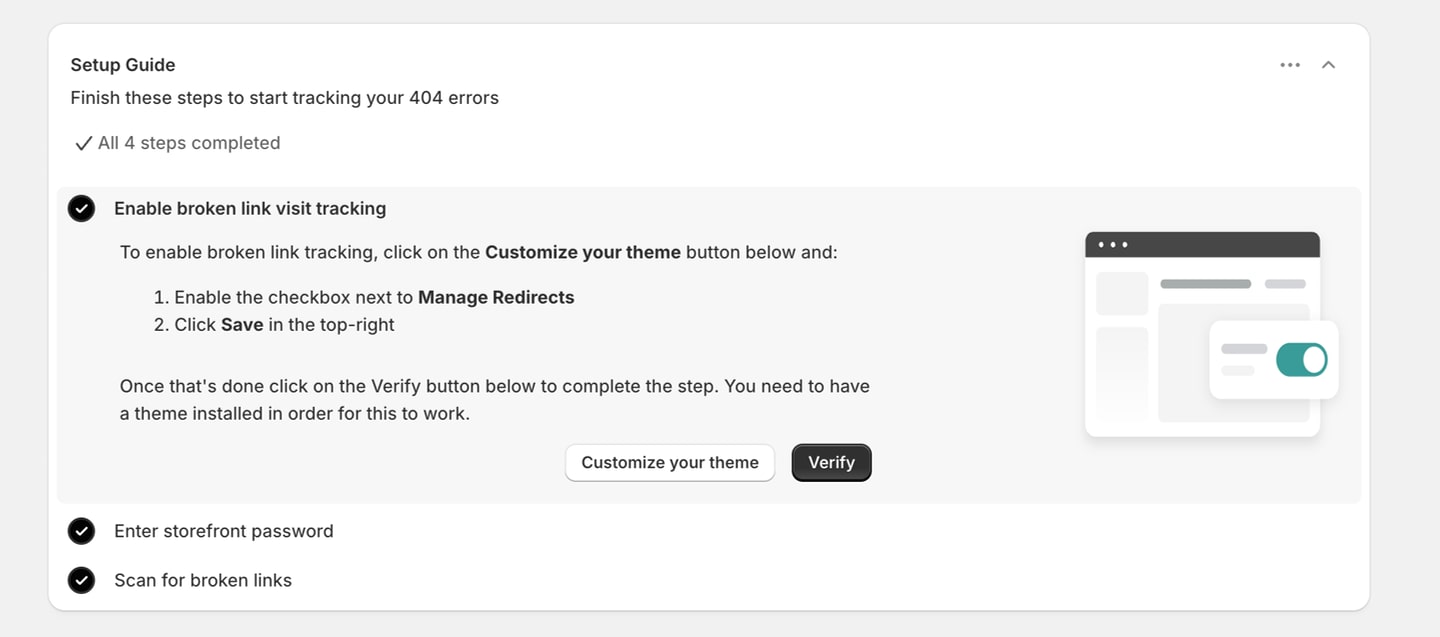
This layout is similar to what Shopify uses on their own surfaces in the admin and use the wonderful Polaris Components setup guide for a template if you’re using React or web components.
These three steps should be actions the user needs to take to get the app running, not promotional content like links to other apps.
This setup guide needs to be dismissible, even if one of the steps is required for the app to run (eg, enabling an app embed block). If the user dismisses the onboarding before completing a required step, you can show a red banner at the top of the page. Red should only be used if the step is absolutely required though, more on colors later.
App Embed Blocks
For app embed blocks specifically, two things that are good to have:
- A direct link to the settings section where the user can enable the block
- Automatically check the status of the embed block when the browser tab regains focus.
This way the user clicks on the button to embed the block, they save it in the Shopify theme settings, and when they return to the app it automatically starts checking for the block.
Be Careful with CLS
When we added a setup guide to the home page, we included conditional logic to show or hide the card. If you’re not careful this can hurt your CLS, even if the content shifting isn’t visible. Since it takes a day or two for web vitals to update, and then another day to sync with the BFS status, you can end up losing a week or more just trying to get this fixed.
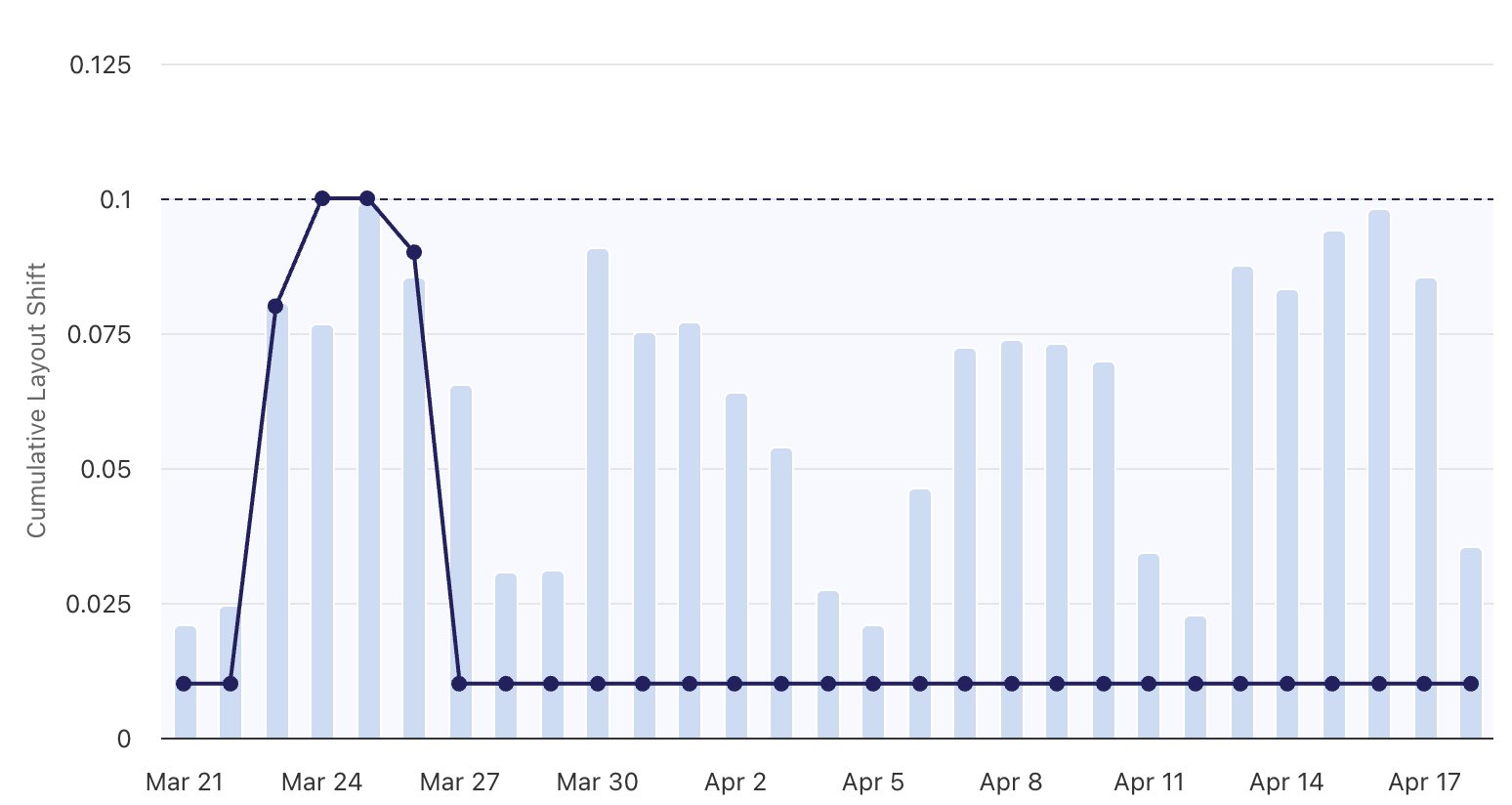
In general, you want the first render of the home page to already know if the setup guide should be displayed or not. Don’t make an AJAX request to see if you need to display it or, if you’re using React, don’t make it depend on a variable that isn’t computed before the first render. After we make any big changes to the onboarding, I set a reminder for 48 hours later to double-check the web vitals.
Contextual Save Bar (CSB)
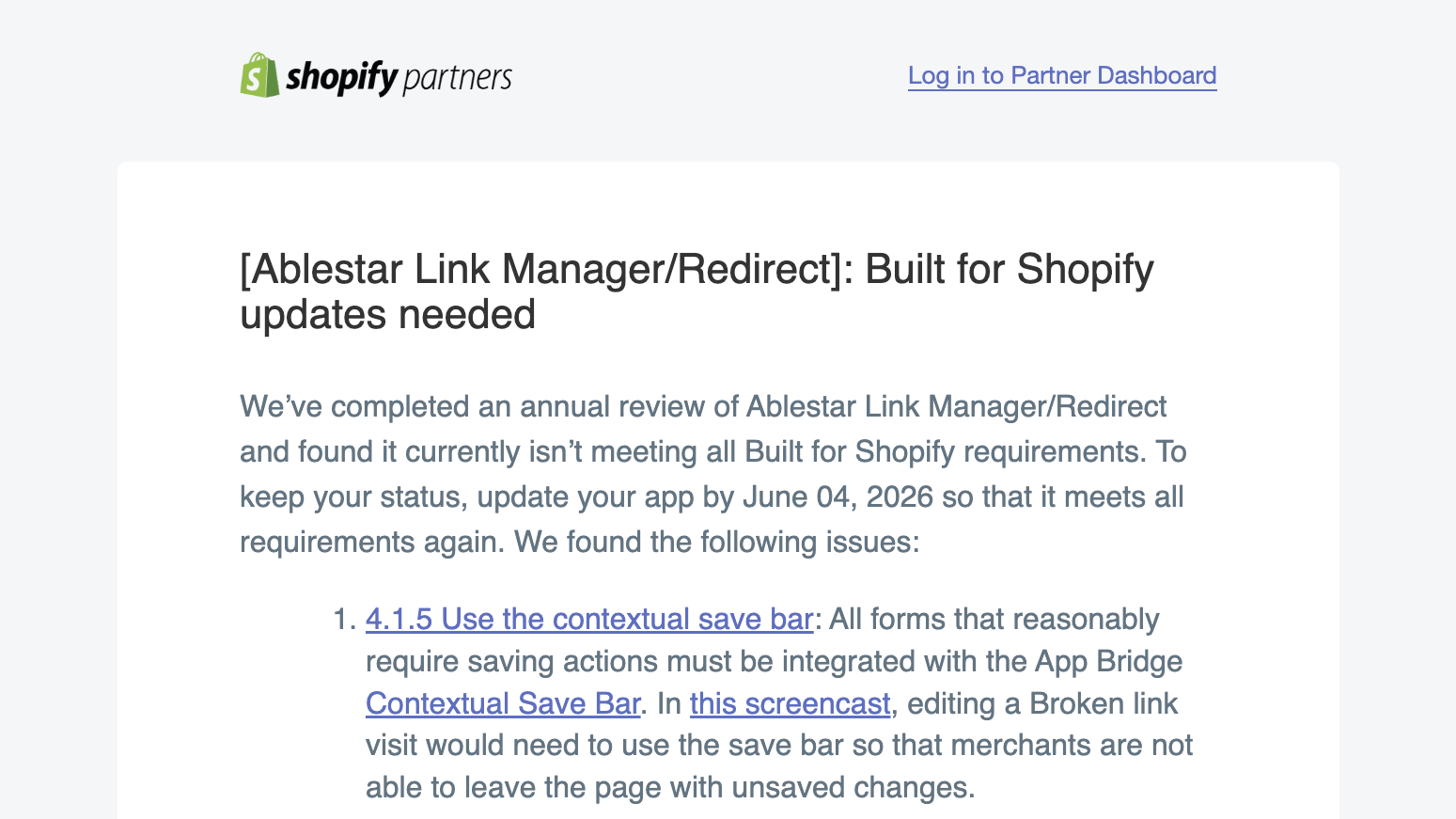
Form inputs should generally be saved using the App Bridge Contextual Save Bar (CSB)
Built for Shopify Requirements (4.1.5)
The contextual save bar (CSB) shows at the top of the Shopify admin when you make changes to form data:

Personally, I still look for the ‘Save’ button at the end of a form, but this is the Shopify standard and it is used consistently across the admin. Whenever you’re saving or updating information, you need to use the CSB. However, if you’re performing an action, you should not use the CSB.
The line between these can be a little tricky but I think of it like this:
- If my app has a weekly report and I’m setting the email address of the recipient, use the CSB.
- If my app can send a one-off report to an email address, use a regular submit button to trigger it.
Data Validation and Form State
The CSB needs to work well with form validation and being able to revert the unsaved changes. We’ll cover validation more below, but you should not be able to save the changes if there’s validation errors in the form.
You’ll also need to keep a copy of the original data for the form so you can show that to the user if they click on ‘Discard’.
Navigation and the CSB
When the Contextual Save Bar is active, it needs to block navigation away from the page until the user either presses ‘Save’ or ‘Discard’. Make sure to test the following and make sure they all block the navigation:
- Pressing the ‘Back’ button in the browser
- Clicking on a menu item in the app’s menu on the left sidebar
- Clicking on any breadcrumbs in the title bar, or on the app’s logo
Implementing the CSB
By far the easiest way to implement the Contextual Save Bar is to add the
data-save-bar attribute to your form. If you have a simple form you can just include it like this:
<form data-save-bar onsubmit="handleSubmit()">
  <s-text-field name="email" />
</form>
Unfortunately, it didn’t seem to work with breadcrumbs in the title bar. If you clicked on a breadcrumb when the form was in a dirty state, you would navigate off of the page but the save bar would still be displayed. For most forms we ended up using the React SaveBar or <ui-save-bar /> web component instead. While it’s more powerful than data-save-bar it does take longer to implement and you need to double check to make sure it blocks all the different types of navigation when activated.
Data Validation and Colors
Errors should be red, guide merchants to solutions, and appear next to relevant fields when possible.
Built for Shopify Requirements (4.2.4)
One thing the BFS reviewers test a lot is how the app handles invalid input. As such, it’s important to have good validation on user inputs and make it clear what needs to be fixed.

Input Validation
For settings pages and other input boxes we try and do the following:
- Put validation errors right below the input. The easiest is to use the
errorattribute of<s-text-field />because this handles the location and colors for you. - Do not validate the input until the input loses focus or the form is submitted. In other words, when you start typing your email into a text field, you don’t want it to say ‘invalid email’ right after you type the first character.
Colors
To ensure consistency across the admin, Shopify has strict rules for what color can be used when. The most common issue we had was showing red when the action was not destructive and an error. If you see any red text or icons on the page, and it’s not destructive or an error (a warning doesn’t count) change the color.
Shopify’s rules for colors are:
- Red: Only for blocking errors or destructive actions.
- Yellow: A status is paused or incomplete.
- Orange: A status is in-progress or pending. Or tell the user that something needs their attention.
- Green: Indicates success or a positive action.
- Blue: Draw attention to tips or offers.
Other Things Reviewers Look For
Throughout the reviews there were a couple other things that popped up multiple times. They don’t fit into the other categories but are still important to highlight when you’re designing for BFS.
Copy and Messaging
- Toast messages should be three words or fewer.
- Toast messages should use the format “[object] [action]” like “Report sent” or “Edit started”.
- If you need to display an error message, put it in a dismissible banner at the top of a page, don’t use a toast message.
Before Submitting
- Keep your app name short (~23 chars) so that it doesn’t truncate in the left-hand navigation of the admin. This is different than the app’s name in the Shopify App Store, where you have more characters to play with.
- Watch your app’s web vitals throughout the review process. It’s not fun to pass the UI review only to realize your web vitals are not passing any more.
- Refer to the Shopify admin and official Shopify Apps for best practices, especially for onboarding and empty states.
Before Any Submission
While many of these items are official Built for Shopify requirements, these are the areas that we kept getting flagged on during reviews. Having this list would have saved us a lot of back and forth during our earlier BFS reviews and is what I review now before any submission:
- Dismissible onboarding guide with three practical steps
- Good web vitals, especially CLS and LCP
- Contextual Save Bars that block navigation away from the page
- Input validation on forms
- Only use red when absolutely necessary
Reviewers are humans and guidelines shift, so if you do see anything different from what’s listed here I’d love to hear it. Good luck with your review.